System UI Bootloop Fix for Pixel & Samsung

Ravish Pandey – Founder & Owner
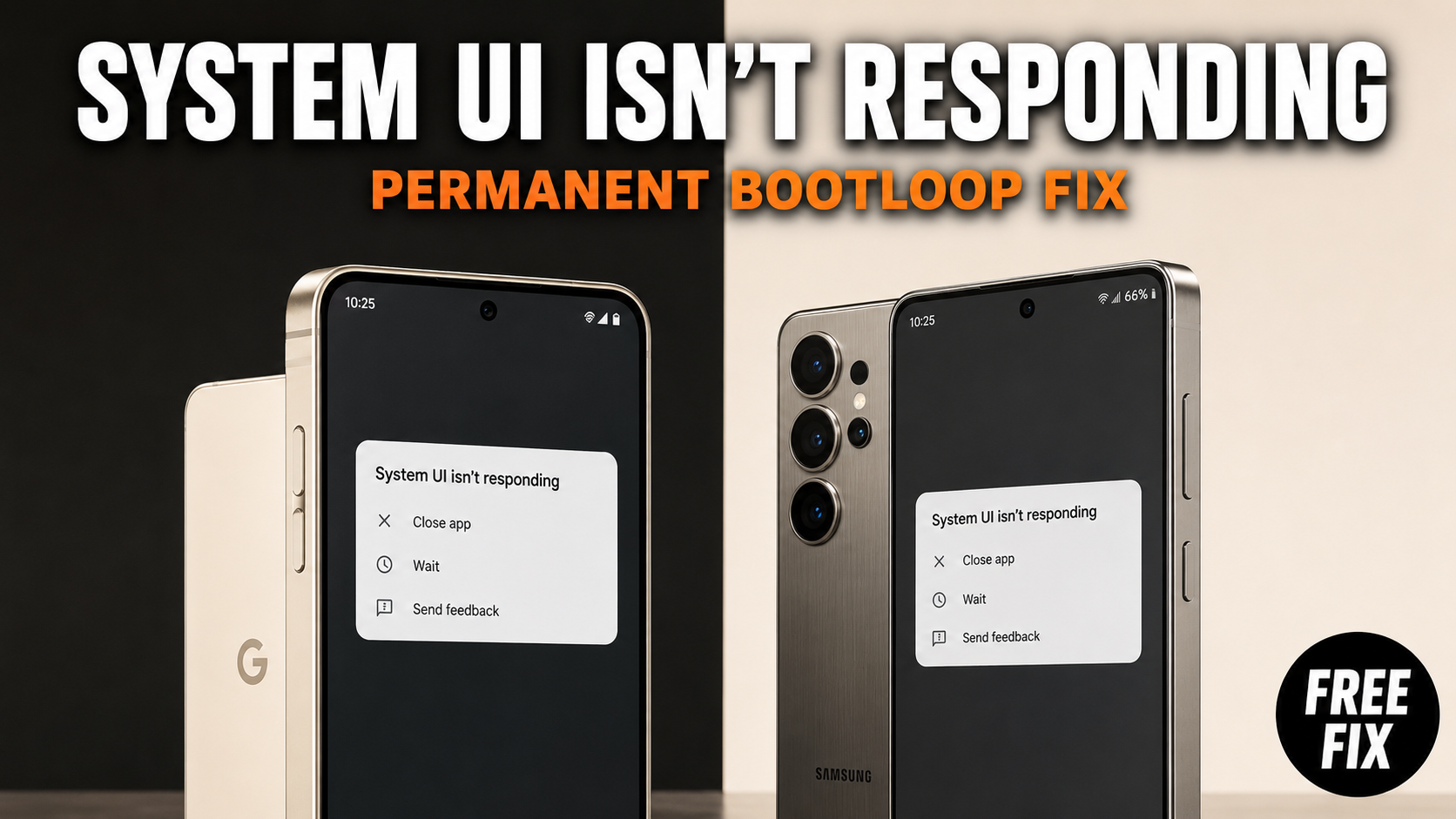
Your phone boots, the screen flashes black every few seconds, your wallpaper refuses to load, and a popup keeps interrupting everything asking "System UI isn't responding." You tap "Wait" or "Close app" and it comes back within seconds. The phone is technically on - just barely usable.
This is a specific failure mode: the Android surface rendering layer (SurfaceFlinger) is crashing on a loop because a corrupted system app update keeps killing it. The most common culprits are the Google App, Digital Wellbeing, or a third-party launcher that pushed a bad update and now crashes every time it tries to draw to the screen.
The good news: this is almost always fixable in about 5 minutes in Android Safe Mode, with no data loss and no factory reset. If the steps below don't work, bring the phone to our Boring Road counter - we diagnose it for free before touching anything.
Quick Fixes
| What you're seeing | Why it happens | How long to fix |
|---|---|---|
| Screen flashing black every few seconds | SurfaceFlinger crash loop from bad app update | ~5 minutes |
| "System UI isn't responding" popup repeating | Corrupted Google App, Digital Wellbeing, or launcher | No data loss |
| Wallpaper won't load, home screen won't settle | UI layer restarts before rendering finishes | Safe Mode fix |
| Phone usable only in Safe Mode | Third-party overlays disabled there | Boot into Safe Mode first |
The 3-step fix:
- Boot into Safe Mode (disables the bad app's ability to crash the UI).
- Find Google, Digital Wellbeing, or your launcher in Settings > Apps.
- Clear Storage, then reboot normally.
What's actually breaking - the SurfaceFlinger layer
Android draws everything you see on screen through a process called SurfaceFlinger. Every app that wants to show pixels sends its rendered surfaces to SurfaceFlinger, which composites them into the final display output. The System UI (status bar, nav bar, home screen, notification shade) runs on top of it.
When a system app like the Google App or Digital Wellbeing pushes a corrupted update, it can fail to render its overlay correctly - and that failure propagates up to SurfaceFlinger. SurfaceFlinger crashes, Android's watchdog restarts it, the corrupted app immediately tries to draw again, and the cycle repeats every 3–8 seconds. That's the black flash you're seeing.
Safe Mode fixes it because Android boots with third-party app overlays and background services disabled. Even though the Google App and Digital Wellbeing ship with the phone, their most recent update is treated as a third-party layer in some Safe Mode implementations - meaning clearing their storage while in Safe Mode actually sticks.
How to enter Safe Mode - exact button sequences by device
Pixel phones (Pixel 6, 7, 8, 9 series)
- Press the physical Power button. The power menu appears on-screen.
- Long-press "Power off" on screen - keep pressing for about 2 seconds.
- A dialog appears: "Reboot to safe mode." Tap OK.
- The phone reboots. You'll see "Safe mode" in the bottom-left corner.
If the screen is too unstable to register the long-press, power off completely (hold the physical power button until the screen goes dark), then hold Volume Down while pressing Power to turn it back on. Keep holding Volume Down through the boot animation.
Samsung Galaxy phones (One UI - Galaxy S, A, Z series)
Samsung skipped the long-press power menu method on most One UI builds.
- Power the phone completely off.
- Press Power to turn it on.
- As soon as the Samsung logo appears, press and hold Volume Down.
- Keep holding through the full boot sequence.
- Release when you see the home screen. "Safe mode" appears in the bottom-left corner.
If Volume Down doesn't work, try Volume Up + Power from a powered-off state - some older Galaxy A-series devices use this combination.
The fix: clear storage for the culprit app
Once in Safe Mode, the screen will stop flashing. That confirms the problem is app-layer, not firmware.
Step 1 - Open Settings > Apps
Tap Settings. Scroll down to Apps (on Samsung it may be listed as Applications). Tap the three-dot menu in the top-right corner and select Show system apps - you need this to see Google App, Digital Wellbeing, and the system launcher.
Step 2 - Clear each likely culprit in order
Clear one, reboot normally, and test before clearing the next. This tells you exactly which app caused the problem.
Google App (com.google.android.googlequicksearchbox)
- Find "Google" in the app list (the multicolor G icon).
- Tap Storage & cache > Clear storage (not just Clear cache).
- Tap OK to confirm.
Digital Wellbeing (com.google.android.apps.wellbeing)
- Find "Digital Wellbeing & parental controls."
- Tap Storage & cache > Clear storage.
- Or tap the three-dot menu > Uninstall updates to roll it back to the factory version - a cleaner fix if Digital Wellbeing is the culprit.
Launcher / Home screen app
- On Pixel: "Pixel Launcher" (
com.google.android.apps.nexuslauncher). - On Samsung: "One UI Home" (
com.sec.android.app.launcher). - Tap Storage & cache > Clear storage.
After clearing each one, reboot normally (long-press power > Restart). If the loop is gone, you found the culprit. If it comes back, re-enter Safe Mode and clear the next app.
Step 3 - Reboot and confirm
The phone reboots to a fresh instance of that app - no update data, no corrupted cache. SurfaceFlinger can draw the UI without crashing and the bootloop stops.
Your personal data (contacts, photos, texts, accounts) is not affected. Only that specific app's local data and update state is reset.
What to do when the screen is too unstable to navigate
If the crash loop is so rapid that Safe Mode itself is hard to navigate, try this: immediately after booting into Safe Mode, pull down the notification shade and leave it open. The shade is rendered differently than the home screen and often stays stable for 10–20 seconds. From the shade, long-press the gear icon to go directly into Settings.
If that doesn't work and you have a laptop with ADB set up, you can clear the apps without touching the screen:
adb shell pm clear com.google.android.googlequicksearchbox
adb shell pm clear com.google.android.apps.wellbeing
ADB must have been authorized on that specific PC before the crash - it won't work with a new connection. If neither approach works, bring the phone in and we'll handle it without risking your data.
The "cursed wallpaper" variant
A visually identical symptom can happen when a wallpaper image with an unusual color profile - a wide-gamut or malformed ICC color space - gets set as the home screen background. Android's color management layer fails, SurfaceFlinger crashes compositing it, and you get the same black-flash loop.
The giveaway: this version starts immediately after you changed your wallpaper, not after an app update. Screenshots downloaded from WhatsApp and images pulled directly from camera burst rolls are the most common sources.
The fix: in Safe Mode, go to Settings > Wallpaper & style (Pixel) or Settings > Wallpaper and themes (Samsung) and set a plain color. Reboot normally. To prevent it, use standard sRGB images as wallpaper and avoid setting WhatsApp forwards or screenshots directly as your background.
Escalation path: when Safe Mode doesn't fix it
| Scenario | What it means | Next step |
|---|---|---|
| Safe Mode also flashes black | Firmware corruption, not app-layer | Wipe cache partition in Recovery Mode |
| Cleared all three apps, still loops after reboot | System UI itself has corrupted cached data | Clear storage for "System UI" app directly |
| Loop returns within 24 hours | Auto-update reinstalled the bad version | Disable auto-update for that app in Play Store |
| Bootloop started after a system OTA update | OS-level partition issue | Pixel Repair Tool or Samsung Smart Switch emergency recovery |
| Factory reset doesn't fix it | Hardware failure (NAND storage chip) | Bring it in for a board-level diagnosis |
Wipe cache partition - no data loss
Pixel:
- Power off completely.
- Hold Power + Volume Down to enter Fastboot mode.
- Use Volume Down to navigate to Recovery, press Power to select.
- When you see a phone with a red exclamation mark, hold Power and press Volume Up once.
- Navigate to Wipe cache partition, confirm with Power.
- Select Reboot system now.
Samsung:
- Power off completely.
- Hold Volume Up + Power (some Galaxy S models also require a connected USB cable).
- Navigate to Wipe cache partition, confirm.
- Select Reboot system now.
This deletes only temporary system files - no photos, no apps, no accounts touched.
When this fix is the wrong choice
This guide covers the app-layer bootloop - SurfaceFlinger crash from a bad update. Skip it if:
- Your phone doesn't boot at all (stuck on manufacturer logo). That points to firmware or bootloader - see phone stuck on boot logo.
- The loop started after a physical drop or water exposure. SurfaceFlinger can crash from a damaged display driver too. Clearing storage won't fix hardware damage - see our water damage repair guide.
- You're on Android 7 or below. The Safe Mode + Clear Storage path works differently, and Digital Wellbeing doesn't exist below Android 9.
- You need your data preserved and aren't confident in the steps. Don't guess - bring it to our Boring Road counter for a free diagnosis before touching anything.
Preventing the next occurrence
Once the phone is stable, two quick changes stop this from happening again.
Turn off automatic updates for high-risk apps. Open Play Store > tap your profile icon > Manage apps & device > Manage. Find Google App and Digital Wellbeing, tap each one, then the three-dot menu > "Don't auto-update." You update manually when a new version releases - but on your timeline, not Google's staged rollout.
Back up before any software job. If this ever escalates to a reflash or factory reset, having a recent backup removes the data-loss risk entirely. The full checklist is in how to back up your phone before a repair.
What GeoSpid can do if self-repair doesn't work
The Safe Mode fix resolves the vast majority of System UI bootloops. When it doesn't - firmware corruption, a failing NAND chip, or a board-level issue - we carry the repair further. Our Boring Road counter does a free diagnosis first so you know exactly what's wrong and what it will cost before any work starts. For software reflash cases, we work to preserve your data where possible; for hardware faults, we tell you plainly whether repair is worth it against the phone's value. Questions before you come in? Message us on +91 70043 61497.
More guides worth reading
Phone stuck on boot logo - causes & DIY fix · How to back up your phone before a repair · Water damage phone repair in Patna · Mobile repair price in Patna